Orchestria Guide
No-Code Data Transformation
Orchestria is a no-code platform that enables you to create intelligent data transformation flows. Whether you work with JSON, XML, CSV, PDF, or plain text, you can automate your transformation processes without writing a single line of code. Artificial intelligence generates the transformation code for you. Your data never leaves your machine.
1 Simple or expert mode
Orchestria offers two usage modes depending on your profile. You can switch between them at any time via the "Expert mode" toggle at the top of the Flows page and the execution page.
🧭 Simple mode (default)
Designed to get straight to the point. Flow creation uses a guided, multi-step wizard. The interface is streamlined: API URL and technical status hidden, action buttons labeled, advanced menus (Connectors, Virtual DNS, API Keys) hidden.
⚙️ Expert mode
For technical users who want direct access to all features: single-window flow creation, API URL visible in the list, generation status, multi-flow routing, virtual DNS, API keys, visual mapping, AI chat on the execution page.
The chosen mode is saved on your account and applies to all your sessions.
2 Create a flow
Flow creation is done in multiple steps depending on your mode. In simple mode, a guided wizard walks you through. In expert mode, everything is grouped into a single window.
Simple mode — guided wizard
Click "New flow". The wizard guides you through these steps:
- Flow name: give it a meaningful name
- Input format: JSON, XML, CSV, text or PDF
- Output format: the format expected by your target system
- Input sample: a real (anonymized) example of your source data
- Output sample: the expected result from this example
- Instructions: describe the transformation in plain English. The wizard can automatically suggest a prompt based on your samples.
- Summary: review your choices before generation
- Generation: AI creates the transformation code
You can go back at any time to modify a step.
Expert mode — single window
All fields are grouped into a single window. First you define the input and output formats, then you provide data samples, and finally you describe the desired transformation.
1Choose formats
Select your input data format (JSON, XML, CSV, text, or PDF) and the desired output format. If using CSV, you can specify the separator and indicate whether your data contains a header row.
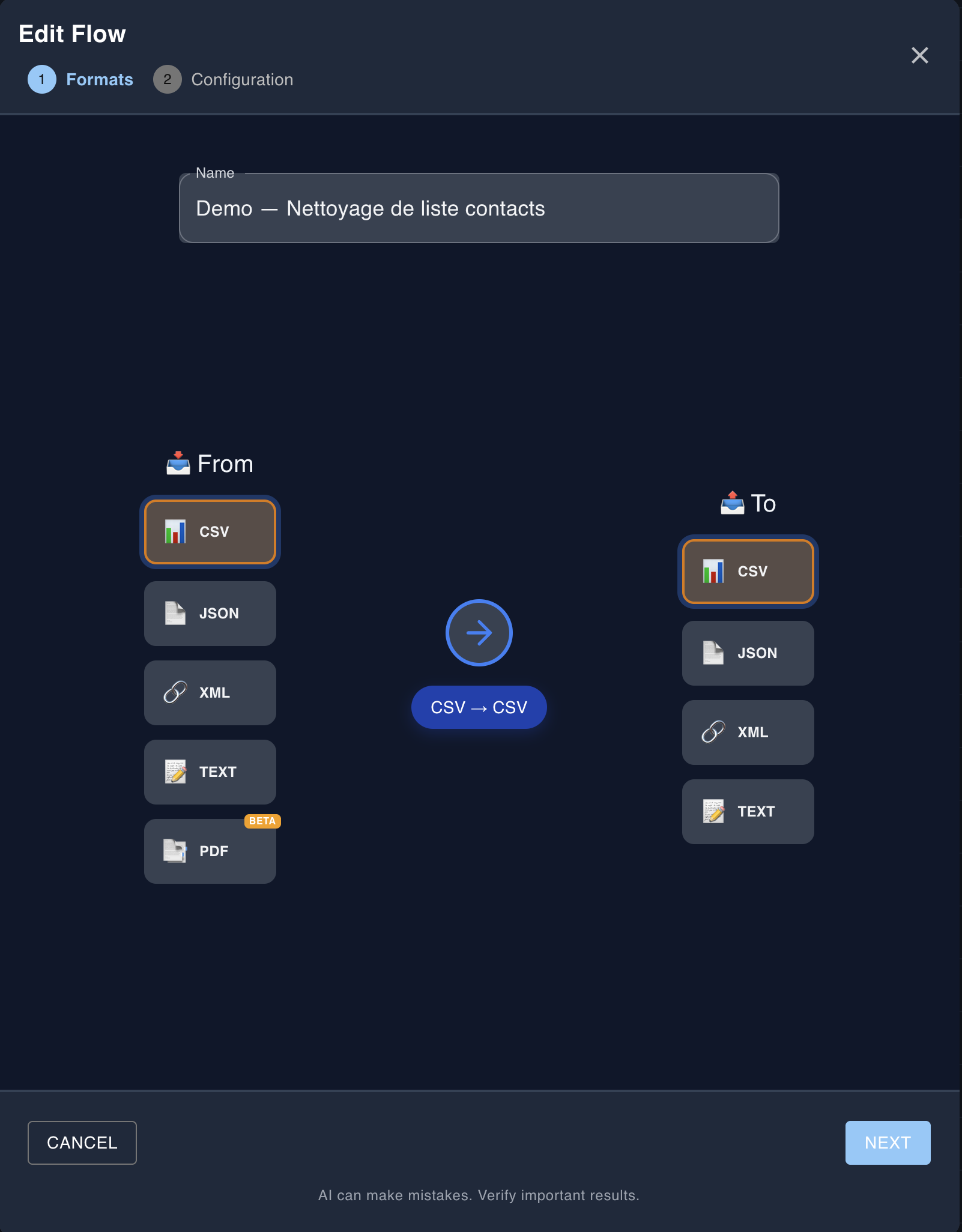
Step 1: Choose input formats (JSON, XML, CSV, Text, PDF) and output
2Provide samples
Copy a real sample of your input data and show what the expected result should look like. These samples allow the AI to understand exactly what you want to achieve. You can also import a file to automatically generate these samples.
⚠️ This data will be sent to AI to generate transformation code. We recommend anonymizing your samples.
Input sample:
{
  "commande_id": "CMD-12345",
  "date": "2025-01-15",
  "montant": 150.00,
  "client": {
    "nom": "Dupont",
    "email": "dupont@example.com"
  }
}
Output sample:
{
  "id": "CMD-12345",
  "date_formatee": "15/01/2025",
  "total_ttc": 150.00,
  "client_email": "dupont@example.com"
}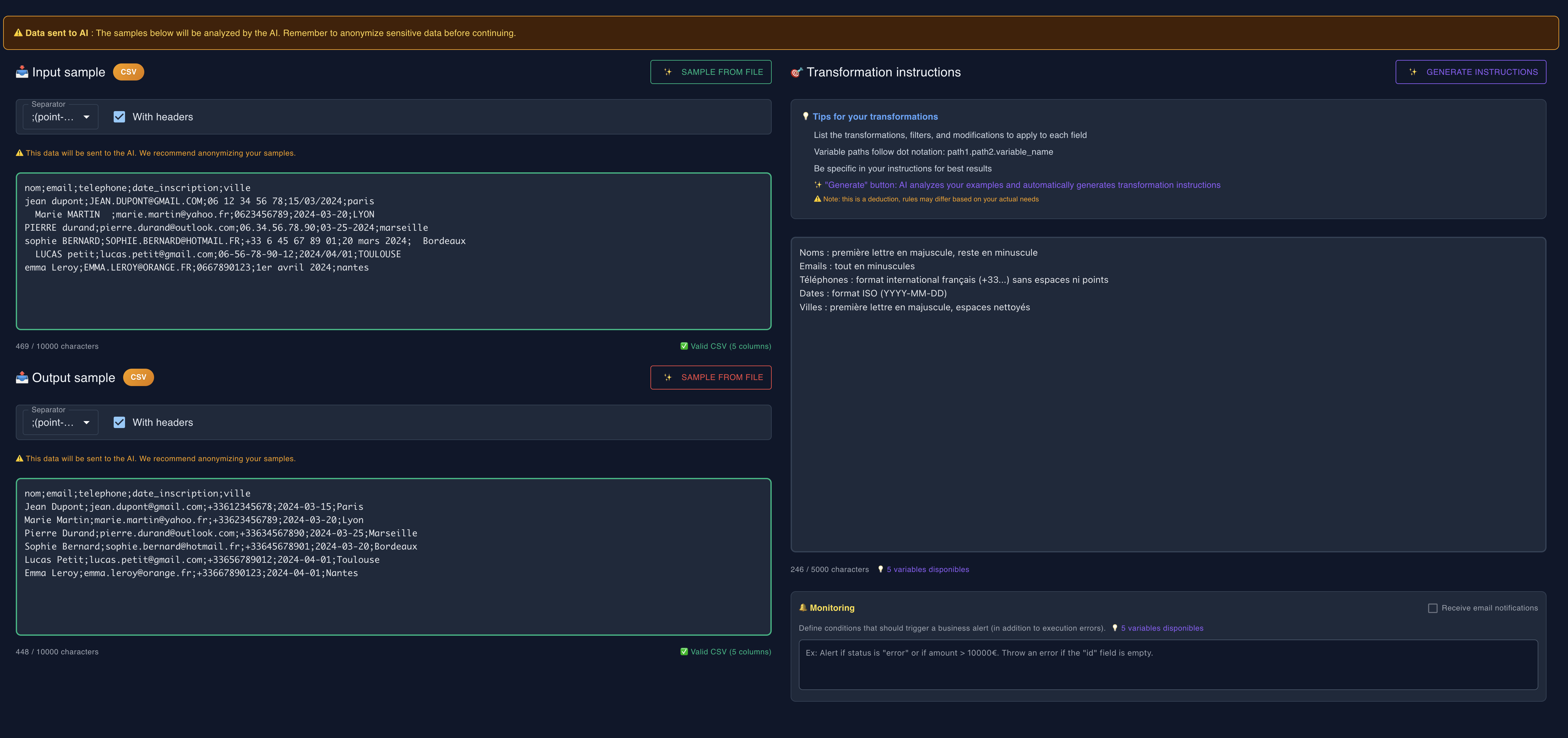
Step 2: Provide samples and describe the desired transformation
3Describe the transformation
Explain in a few sentences what the flow should do. For example: "Extract today's orders, filter those exceeding $100, and format the date in French format". The AI will use these instructions to generate the transformation code.
💡 Examples of effective prompts:
- • "Extract orders with amount over €100 and format date as DD/MM/YYYY"
- • "Filter active customers, sort by registration date descending"
- • "Add a 'total_with_tax' field calculated with 20% VAT"
💡 When referencing data fields, put variable names in quotes and use dot notation for nested objects. For example: "client.address.city" or "total_amount".
Once this information is provided, click "Save". The AI will analyze your samples and automatically generate the code that performs the requested transformation. For PDF flows, the AI analyzes the document and extracts the data at this step.
3 Monitoring and Alerts
Define business alerts when creating the flow or via the AI chat, and receive automatic notifications.
Define alerts
You can define alerts when creating the flow or via the AI chat. For example: "Add an alert if the amount exceeds €10,000" or "Notify me if the status is error".
Email notifications
Enable the "Email notifications" option in the flow settings to receive an email for each alert or error.
4 AI Provider Choice
Orchestria supports multiple artificial intelligence providers. You can choose the one that best suits your needs in terms of quality and cost.
Available providers
OpenAI
Market reference provider. High precision for flow generation and PDF extraction. Recommended for critical use cases requiring maximum reliability.
Mistral (default)
74% cheaper than OpenAI with equivalent quality. Excellent value for most use cases. Also supports PDF extraction.
How to change provider
Go to My Account → Settings to select your AI provider. The change applies immediately to all your operations: flow creation, AI chat modifications, and PDF extraction.
💡 Mistral is selected by default to optimize your costs. Both providers consume your AI credits in the same way.
5 PDF Flows
Orchestria automatically extracts structured data from your PDF documents (invoices, quotes, purchase orders...) using AI Vision.
AI Vision Extraction
Each PDF is analyzed by the vision AI (based on the provider configured in your settings) that identifies and extracts all relevant fields: numbers, dates, amounts, invoice lines, etc.
⚠️ Why validate extracted data?
AI Vision is highly performant, but not infallible. An extraction error (misread amount, inverted date, incorrect VAT...) can have significant business consequences: incorrect invoices, wrong accounting entries, incorrect payments, etc.
Validation modes allow you to control this risk according to your needs.
The 3 validation modes
When creating a PDF flow, you choose how documents will be processed at execution:
🚀 Automatic Mode
The flow executes immediately after extraction. No human verification.
→ Ideal for standardized and reliable documents (same supplier, same format).
⚖️ Controlled Mode
AI calculates a confidence score based on validation rules (total consistency, required fields presence...). If the score is above the threshold (default 95%), the flow executes automatically. Otherwise, the PDF is queued for manual validation.
→ Good balance between automation and security.
👁️ Manual Mode
Each PDF is systematically queued for human validation before execution.
→ Full control over each document.
PDF Validation Page
Access the "PDF Validations" page from the menu to manage pending documents:
- PDF preview and extracted data side by side
- Confidence score and validation rules details
- Edit extracted JSON before validation
- Bulk actions (validate/reject multiple PDFs)
JSON in PDF flows
When creating the flow
When you create a PDF flow, the AI analyzes your sample document and automatically generates a JSON representing the data structure. This JSON becomes a template that will be used for all future PDFs sent to this flow.
This template defines:
- The data structure the AI will extract from each PDF
- Available fields (number, date, amounts, line items...)
- Sample values (which will change with each document)
{
  "numero_facture": "F-2024-001",
  "date": "2024-01-15",
  "fournisseur": "Boulanger",
  "total_ttc": 219.99,
  "lignes": [
    { "designation": "Produit A", "quantite": 1, "prix_ht": 183.33 }
  ]
}
What you can modify
The generated JSON is fully customizable:
- Rename fields to match your system
- Remove fields you don't need
- Add fields if you know they exist in your documents
- Apply a predefined template (Invoice, Order, Quote, Delivery Note) to start with a structure suited to your document type
🧪 Test model: after modifying the JSON, click "Test model" to verify the AI will correctly fill your structure with the PDF data. This test uses the same prompt as the actual execution.
⚠️ Warning: Keep a structure consistent with your documents. If you add an "order_number" field but your PDFs don't contain one, the AI won't be able to extract it.
At execution
When you send a PDF to the flow, the AI uses the template defined at creation to extract data. It fills each field of the template with values found in the document.
The process:
- AI reads the PDF and extracts data
- A confidence score is calculated (amount consistency, required fields...)
- Based on validation mode, the JSON is auto-validated or queued for review
- You can correct extraction errors before validation
- Once validated, the JSON is transformed to the output format
From input to output
The extracted JSON (input) is transformed by your flow to the output format. The prompt you wrote describes this transformation.
💡 Example: PDF Invoice → Structured JSON → Accounting format for import
🔒 GDPR Compliance
- Explicit consent before each AI extraction
- Temporary PDFs automatically deleted after validation
- Automatic expiration: 7 days maximum
Executing PDF flows
Once the flow is created, you can execute it via the web interface or via API by sending the PDF as binary.
API call example
curl -X POST https://orchestria.io/api/flows/YOUR_FLOW_UID/your-flow-name \
  -H "Authorization: Bearer YOUR_API_KEY" \
  -H "Content-Type: application/pdf" \
  -H "X-Filename: invoice.pdf" \
  --data-binary @invoice.pdf
💡 For PDFs from the same supplier, always use the same flow for consistent results.
6 Test and execute
Once your flow is generated, you access an interface divided into two parts: execution on the left, chat with the AI agent on the right.

Execution interface with input form on the left and results on the right
Execute the flow
Paste your real data into the input field, verify that the format matches the configured one, then click "Execute". The result is displayed immediately with the chosen output format. You can download the result or copy it to your clipboard.
Format management
The result is displayed in the output format configured when creating the flow. For asynchronous webhooks, the system returns an execution identifier to track processing in the logs.

Results displayed with configured output format and download option
7 AI Agent
The AI agent allows you to refine your flow through successive iterations, directly via chat. You describe what you want to modify, and the AI adjusts the code accordingly.

AI chat to modify the flow through successive iterations
Use the chat
Simply describe the desired modifications. For example: "Add a filter to exclude inactive customers" or "Change the date format to MM/DD/YYYY". The AI understands your flow's context and proposes an adapted modification. Be specific in your requests and mention the concerned field names.
💡 When referencing data fields, put variable names in quotes and use dot notation for nested objects. For example: "client.address.city" or "total_amount".
Code validation system
When the AI modifies your flow's code, the new code is automatically deployed so you can test it. A validation banner appears above the chat, temporarily blocking new modifications. Test the flow with the execution form on the left, then click "Validate" if the result suits you, or "Rollback" to return to the previous version.
Automatic rollback
If you choose rollback, the system automatically restores the old code version and redeploys it. A system message appears in the chat to confirm the rollback. This feature ensures you never lose a working version of your flow.
⚠️ What the agent can do
The agent only modifies the business transformation code. It cannot change input or output formats, nor CSV parameters like separators or header presence. For these structural modifications, you will need to edit the flow parameters or create a new one. The agent only works based on the samples you provided during creation.
8 Deploy to production
Once your flow is tested and validated, you can integrate it into your applications via a secure REST API.
Get the execution URL
Click the "eye" icon next to your flow in the list to display its execution URL. This URL is unique and permanent. You can copy it and use it in your applications. Calls are made via POST with your data in the request body.
Generate an API key
Go to the "API" section in the menu to generate an authentication key. This key must be transmitted in the Authorization: Bearer YOUR_KEY header for each call. Never share this key publicly, it gives access to all your flows.

API key management page to authenticate your calls
📘 API call examples
curl -X POST https://orchestria.io/api/execute/YOUR_FLOW_ID \
  -H "Authorization: Bearer YOUR_API_KEY" \
  -H "Content-Type: application/json" \
  -d '{
    "commande_id": "CMD-12345",
    "montant": 150.00
}'import requests
url = "https://orchestria.io/api/execute/YOUR_FLOW_ID"
headers = {
"Authorization": "Bearer YOUR_API_KEY",
"Content-Type": "application/json"
}
payload = {
"commande_id": "CMD-12345",
"montant": 150.00
}
response = requests.post(url, json=payload, headers=headers)
result = response.json()
print(result)const response = await fetch('https://orchestria.io/api/execute/YOUR_FLOW_ID', {
method: 'POST',
headers: {
'Authorization': 'Bearer YOUR_API_KEY',
'Content-Type': 'application/json'
},
body: JSON.stringify({
commande_id: 'CMD-12345',
montant: 150.00
})
});
const result = await response.json();
console.log(result);9 Connectors
Connectors allow you to fully automate your integrations by retrieving data from external sources (polling) or sending your results to third-party services (output webhooks).

Connector configuration interface (input and output)
Input Connectors (HTTP Polling & SFTP)
Input connectors automatically retrieve data from external sources.
As soon as new data is detected, the connector automatically triggers the flow configured in the Routing page. Polling is counted in your quota even if no data is retrieved, so choose a frequency adapted to your real needs.
Output Connectors (Webhooks & SFTP)
Output connectors automatically send your flow results to an external destination.
Advantage: Create a connector once and reuse it across multiple flows (instead of configuring webhooks individually for each flow in the Routing page).
Configuration and security
Connectors support four authentication methods: none, Bearer Token, Basic Auth, and Sign-In (for APIs requiring prior login generating a JWT token or API key). For input connectors, the minimum polling frequency depends on your plan (60min for Free, 30min for Starter, 10min for Pro, 5min for Enterprise). All connectors benefit from detailed logs and automatic error handling for maximum reliability.
10 Advanced features
Flow routing and chaining
The routing system allows you to automatically chain multiple flows. The first flow's result becomes the second's input, and so on. You only receive the first flow's result in response, the following ones execute in the background. To retrieve the final result of a chain, configure a webhook on the last flow in the sequence.

Visualization of flow chaining with interactive diagram
💡 Example use case:
Flow 1 (Extraction) → Flow 2 (Transformation) → Flow 3 (SFTP Send)
Virtual DNS for multiple environments
Virtual DNS allows you to create distinct deployment environments (production, staging, development) with custom URLs. You can test a new version of your flow on a test URL, then switch the production URL to this new version once validated. This enables zero-downtime deployment and instant rollback if needed.
Logs and diagnostics
The "My Logs" section centralizes all your flow executions. You can filter by status (success, error, running, rejected) and view details of each execution. Pro+ users benefit from automatic AI error analysis that precisely identifies problems (incorrect format, missing field) and suggests correction paths.
11 Security and Privacy
Protecting your data is our absolute priority. Orchestria is designed to ensure total confidentiality of your business data.
AI and data separation
Artificial intelligence is only used during flow creation to generate transformation code. It only has access to the samples you provide, never to your real production data. Your execution payloads never transit through AI services.
No data storage
Data you send for execution is processed in memory then immediately deleted. Orchestria stores no payloads, which makes execution replay impossible but guarantees total GDPR compliance. Only metadata (status, timestamp, user) is retained for logs.
Sample protection
The data samples you provide when creating a flow are securely stored in your account and never shared with third parties. These samples are necessary for the flow to function and can be modified by editing the flow.
AI and PDF documents
When creating or editing a PDF flow, the document is sent to the AI for processing. Only "PDF Vision" mode uses AI for data extraction at each execution. This mode consumes more resources and should be used knowingly for complex or scanned documents.
12 Quotas
Each plan has monthly quotas. Here are the different types of quotas.
Number of flows
Limit on the number of flows you can create. Varies by plan (e.g., 5 flows for Starter, unlimited for Enterprise).
Executions
Monthly API calls. Each call to a flow counts as an execution, whether it succeeds or fails.
AI Credits
Used when creating, modifying, and improving flows via the AI chat. PDF Vision mode also consumes AI credits.
Check your quotas
View your consumption on the "My Account" page or on the dashboard.
13 Technical limits
To ensure optimal performance and service stability for everyone, Orchestria applies certain technical limits to processed payloads.
Maximum payload size
The maximum request size (input payload) is 10 MB. This limit applies uniformly to all formats (JSON, XML, CSV, text) and all execution methods (REST API, webhooks, connectors). Beyond this limit, you will receive a 413 error (Request Entity Too Large).
Capacity by format
A 10 MB limit allows processing approximately 500,000 simple JSON objects, 100,000 to 200,000 CSV rows, or 20,000 complex XML elements. This capacity covers 95 to 98% of standard integration use cases. For larger volumes, we recommend splitting your data into multiple calls or contacting us to discuss a solution adapted to your needs.